Guide to Docker Automation for Development Environments
Have you ever cringed at the dreaded excuse, “Well, it works on my machine”? Setting up a fresh local workspace can easily eat up hours—sometimes even days—draining time that could be spent actually coding. For modern engineering teams, finding a rock-solid way to standardize these workflows isn’t just a nice-to-have; it’s an absolute necessity.
That is exactly where Docker automation for development environments shines. By leveraging containerization, developers can spin up identical replicas of their production environments in a matter of seconds. Not only does this guarantee consistency across the board, but it also wipes out frustrating dependency conflicts and gives your team’s productivity a massive boost.
Throughout this comprehensive guide, we will dive into why local setup issues plague so many teams, how containers provide the perfect fix, and the concrete steps you can take to put your local development process on autopilot. Whether you are a solo indie hacker or pushing code in a massive enterprise, getting comfortable with this workflow is a must.
Why Docker Automation for Development Environments is Crucial
At its core, the problem boils down to operating system quirks. On any given team, you will likely find a mix of developers using macOS, Windows, or various Linux distributions. Even the smallest discrepancies in global software versions—like running a slightly different release of Node.js, Python, or PHP—can cause a perfectly good project to inexplicably fail.
Think about the classic headache of “dependency hell.” Let’s say one project relies on Python 3.8, while another demands Python 3.11. Trying to juggle multiple version managers like Pyenv, NVM, or RVM on your own machine quickly turns into a delicate, frustrating balancing act. Once you start throwing external dependencies into the mix, such as relational databases, caching layers, and message brokers, the complexity shoots through the roof.
Historically, teams have tried to solve this with massive onboarding documents. A new hire might spend their entire first week just trying to coax the application into compiling. The reality, though, is that written documentation becomes outdated almost the moment it is published, inevitably leading to broken setups and wasted hours.
By shifting to a reproducible environment through Docker, you move your configuration out of the realm of tribal knowledge and into version-controlled code. This transformation is just as vital for maintaining sprawling enterprise infrastructure as it is for learning how to build WordPress plugins from scratch without bogging down your computer with complex Apache and MySQL installations.
Basic Solutions for Docker Automation
If containerization is new territory for you, the smartest move is to start small. You certainly do not need to build out a highly complex CI/CD pipeline on day one to start enjoying the perks of reproducible environments. Here are a few basic, highly effective steps to automate your setup right away.
- Write a standard Dockerfile: Think of this as the master blueprint for your application. It is a single file that dictates your base image, handles the installation of system-level dependencies, and executes your code.
- Implement Docker Compose: By utilizing a
docker-compose.ymlfile, you can easily orchestrate multiple containers at once. This means you can boot up your main application, a database server, and a caching instance all at the same time, completely eliminating the chore of starting services manually on your host OS. - Use volume mounts for hot reloading: This technique maps the local source code directory straight into your active container. As a result, you can continue writing code in your preferred IDE on your host machine, and watch those changes reflect instantly inside the containerized app.
Firing off a quick command like docker-compose up -d handles the entire booting sequence for you. In one fell swoop, a single, dependable command replaces pages of tedious onboarding instructions. Ultimately, this forms the foundational building block of local development automation.
Advanced Solutions for Dev Environments
Once you feel confident with the basics, it is worth exploring more advanced configurations from an IT operations and DevOps standpoint. These approaches weave deeper into your daily routine, effectively blurring the boundary between writing code locally and deploying to the cloud.
1. VS Code DevContainers
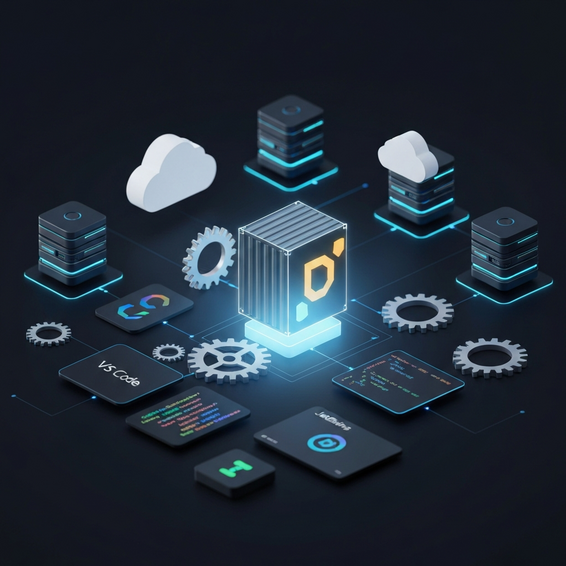
Microsoft took Docker automation to the next level with their DevContainers extension. Essentially, it lets you use a Docker container as a fully isolated, feature-rich development environment. By simply committing a devcontainer.json file to your source control repository, any developer who opens the project in VS Code gets a prompt to reopen the workspace directly inside the container.
From there, the IDE automatically builds the environment, installs mandatory VS Code extensions (like your project’s specific formatters and linters), and forwards all the necessary network ports. It is the ultimate way to guarantee that everyone on the team shares the exact same editor configuration.
2. Makefiles and Shell Scripts
Docker Compose is undeniably powerful, but let’s be honest: developers often struggle to remember the precise command-line flags needed for routine tasks, like resetting a test database or running a specific test suite inside a container. Wrapping those lengthy Docker commands inside a Makefile or a dedicated shell script makes onboarding incredibly smooth.
By providing intuitive commands such as make setup, make test, or make db-reset, you neatly hide the underlying Docker complexity. You can even hook these scripts up to AI-driven workflows. If you want to dive deeper into expanding your automation beyond standard coding environments, take a look at our guide on how to automate daily tasks using AI.
3. Local Kubernetes (Minikube / k3d)
If your actual production environment relies on Kubernetes, your local setup should mirror that architecture as closely as possible. By pairing lightweight local clusters—like Minikube, kind, or k3d—with continuous development tools such as Tilt or Skaffold, you can heavily automate this complex process.
These tools actively monitor your local source code, automatically build the required Docker images on the fly, and seamlessly deploy them straight into your local Kubernetes cluster. For teams managing intricate microservice architectures, this real-time feedback loop is absolutely invaluable.
Best Practices for Optimization and Security
Getting your local dev environment automated is a massive win, but it is really only half the battle. You also need to make sure your setup is fast, tightly secured, and optimized to handle rigorous daily use. If your Docker configuration is poorly optimized, it will quickly devour your computer’s RAM and drag your development pace to a crawl.
- Use Multi-Stage Builds: This is the secret to keeping your final Docker images incredibly lean. You can compile your code and download heavy build dependencies in the first stage, then copy only the finalized, compiled binaries over to a much smaller runtime stage.
- Leverage Build Caching: The order of your Dockerfile instructions matters immensely. Always copy your dependency files (like
package.jsonorrequirements.txt) and install them before copying over the rest of your frequently changing source code. This smart sequencing takes advantage of Docker’s layer caching, shrinking rebuild times from minutes down to mere seconds. - Run as Non-Root: From a security standpoint, you should avoid running containers as the default root user. Make sure to specify a dedicated, unprivileged user within your Dockerfile. This simple step prevents serious privilege escalation vulnerabilities from surfacing if that container ever makes its way to a public deployment.
- Manage Secrets Properly: Never make the mistake of hardcoding sensitive credentials, database passwords, or API keys directly into your Dockerfile or source code. Instead, rely on
.envfiles and theenv_filedirective within Docker Compose to securely inject those environment variables at runtime. - Limit Resource Allocation: To keep a rogue process from freezing up your entire host machine, double-check your Docker Desktop or container engine settings. Always ensure there is a hard limit on the amount of CPU and RAM your containers are allowed to consume.
Recommended Tools and Resources
To squeeze the most out of your developer productivity and keep your workflows humming smoothly, consider adding these essential tools to your containerized toolkit:
- Docker Desktop: This remains the industry-standard graphical interface for managing local containers on both Windows and macOS.
- OrbStack: If you are on a Mac, this is a lightning-fast, ultra-lightweight alternative to Docker Desktop. It consumes significantly fewer system resources and comes highly recommended if performance optimization is your top priority.
- Portainer: A brilliant, self-hosted web interface that allows you to visually manage all your containers, networks, and volumes without ever having to touch the command line.
- GitHub Actions / GitLab CI: By leveraging these platforms, you can run your CI/CD pipelines using the exact same Docker images that you rely on locally. This is how you achieve true, frictionless parity across your dev, staging, and production environments.
Frequently Asked Questions (FAQ)
Does Docker slow down local development?
In the past, relying heavily on aggressive file syncing through volume mounts—especially on macOS and Windows—did result in noticeable performance drops. Today, however, performance is practically near-native thanks to modern integrations like VirtioFS in Docker Desktop, or streamlined alternatives like OrbStack. Whatever minor operational overhead remains is vastly outweighed by the sheer amount of time you save during your initial setup.
What is the difference between Docker Compose and DevContainers?
Think of Docker Compose as the tool you use to orchestrate multiple application services, like spinning up a web server alongside a database and a caching layer. DevContainers, conversely, use Docker to encapsulate your entire Integrated Development Environment (IDE) backend. This guarantees that your container comes pre-loaded with the exact compilers, linters, and editor extensions you need to write the code comfortably.
Should I use Docker for frontend development?
Absolutely. Putting your frontend applications inside a container ensures that every single person on your team is using the exact same version of Node.js and the identical package manager (be it npm, yarn, or pnpm). It is the best way to eradicate the notorious “it works on my machine” bugs that are so common in the fast-paced JavaScript ecosystem.
Can I use Docker automation for legacy applications?
Yes, and you definitely should. Legacy applications are actually some of the best candidates for containerization. By trapping old, outdated dependencies (like an ancient version of Java or PHP) inside a secure Docker container, you can run legacy code seamlessly on modern hardware. This keeps your host operating system clean and free of obsolete, potentially vulnerable software.
Conclusion
Setting up proper Docker automation for development environments truly is a game-changer for engineering teams, regardless of their size. When you replace fragile, manual setup checklists with robust, executable code, you effectively bridge the gap between development and production. Best of all, you wipe out endless dependency conflicts and dramatically elevate your team’s overall productivity.
If you are just getting started on this journey, take it one step at a time. Begin by containerizing a single application using a straightforward Dockerfile and a basic Docker Compose setup. As you get more comfortable, you can slowly roll out advanced tools like automated Makefiles or DevContainers to refine your workflow even further. Putting in the effort to automate and optimize your local environments today will undoubtedly save you and your team countless hours of tedious debugging down the road.
About the Author