How to Host Your Own Services Using Docker: A Complete Guide
Sick of handing over your hard-earned cash for endless monthly cloud subscriptions, only to feel like you’ve lost control over your personal data? If privacy, heavy customization, and saving money in the long run matter to you, running your own infrastructure is an absolute game-changer. By learning how to host your own services using docker, you can break free from big tech’s walled gardens and finally take full ownership of your digital footprint.
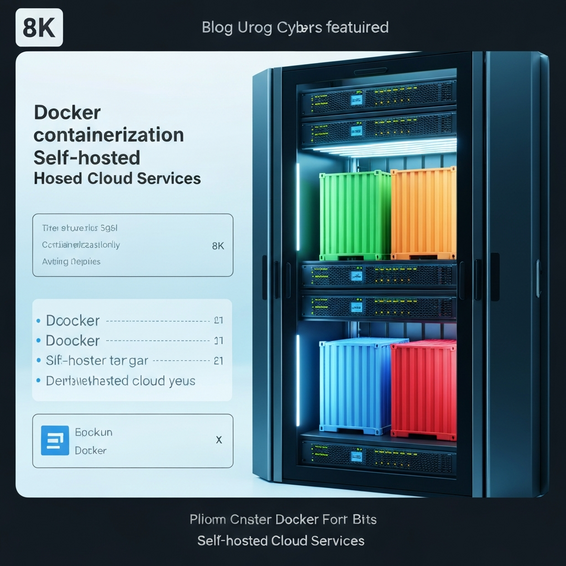
Setting up a home server used to be a massive headache. You’d constantly battle dependency conflicts, clean up messy installations, and sometimes even break your operating system entirely. Thankfully, containerization has completely flipped the script for developers and IT hobbyists. Because Docker packages software into neatly isolated environments, you can easily run several complex applications on a single machine—without them ever stepping on each other’s toes.
Whether your goal is to spin up a personal media server, self-host a secure password manager, or build a centralized smart home controller, this guide has you covered. We’ll break down the basics of containerization, walk through your first simple setup, and eventually tackle some advanced configurations. Ready to dive in? Let’s build your self-hosted infrastructure from the ground up.
Why You Should Transition to Self-Hosting
There’s no denying that the shift toward cloud computing made life incredibly convenient. However, it also brought along serious downsides, namely subscription fatigue and frustrating vendor lock-in. Whenever a cloud provider goes offline or decides to double their pricing overnight, you’re pretty much at their mercy. Self-hosting removes that vulnerability entirely, placing the control plane firmly back in your own hands.
Looking back at the technical side of things, traditional bare-metal installations were notoriously fragile. If one app needed an older version of PHP and another required the latest Node.js release, your weekend system admin tasks quickly turned into a nightmare. Thankfully, self-hosting with Docker effectively cures this “dependency hell.” It uses kernel namespaces and cgroups to keep every single process strictly isolated from the rest of the system.
Think of it like this: each service lives inside its own secure little bubble, packed with exactly the libraries and binaries it needs to work. This level of isolation makes Docker container management incredibly predictable and a breeze to reproduce. If the day comes when you need to upgrade to a beefier server, migrating your entire setup is usually as simple as copying over a few basic configuration files.
How to Host Your Own Services Using Docker: Quick Start Steps
Before you can build out your dream homelab, you need to lay down a solid foundation. If you’re ready to get your hands dirty, here are the exact, actionable steps to deploy your first containerized application both quickly and securely.
- Prepare your hardware: Get your hands on a Linux-based machine. This could be a modest Raspberry Pi, a dusty old desktop PC, or even a rented cloud VPS.
- Install the Docker Engine: Download and install both Docker and the essential Compose plugin onto your host operating system.
- Create a working directory: Keep your digital workspace tidy by setting up dedicated folders for every single service you plan to run.
- Write a Compose file: Define your infrastructure as code by crafting a simple, highly readable
docker-compose.ymlfile. - Deploy the container: Fire up your terminal and run the
docker compose up -dcommand to pull your images and launch the services seamlessly in the background.
Let’s break down a practical example of how to actually host apps locally. Say you want to run a private instance of a web server. You’d start by creating that docker-compose.yml file mentioned above. This document acts as your master blueprint, telling the Docker engine exactly which image it needs to download and which network ports should be exposed to the outside world.
By simply mapping port 8080 on your main machine to port 80 inside the container, you can pull up the service immediately in your web browser. Because this approach is entirely declarative, you don’t have to waste brainpower memorizing long, complex command-line arguments. Once your local server is humming along stably, it becomes the perfect sandbox for testing custom development projects—such as learning how to build WordPress plugins from scratch.
Advanced Solutions: Reverse Proxies and Networking
Spinning up a few local containers is an awesome first step, but having to memorize random IP addresses and port numbers gets old pretty fast. To level up to a true homelab setup, you’ll eventually want to implement a reverse proxy. Think of a reverse proxy as a digital traffic cop that sits right in front of your containers, routing incoming web requests based on clean, easy-to-read domain names rather than clunky numbers.
When it comes to managing this traffic, tools like Traefik or Nginx Proxy Manager are the undisputed industry standards. They are remarkably smart, capable of dynamically discovering new Docker containers and routing traffic to them automatically—meaning you rarely have to edit configuration files by hand. On top of that, they seamlessly handle generating SSL certificates via Let’s Encrypt, which guarantees that all your self-hosted tools are locked down with secure HTTPS connections.
Moving slightly deeper, another fantastic advanced technique involves setting up custom Docker bridge networks. Rather than exposing sensitive backend databases directly to your host network, you can tuck them away safely on an internal, isolated Docker network. This ensures that only the specific application container that actually needs it can access the database, drastically shrinking your potential attack surface. You might even integrate these tightly secured setups into broader workflows, perhaps exploring how to automate daily tasks using AI so your server logs are monitored completely autonomously.
Best Practices for Container Management
Any time you deploy self-hosted services, stability and security should be at the absolute top of your mind. A single, poorly configured container is sometimes all it takes to expose your entire home network to bad actors. Because of this, it’s crucial to always stick to the golden cybersecurity rule: the principle of least privilege.
As a general rule of thumb, avoid running your containers as the root user whenever possible. By explicitly defining a non-root user ID right in your compose files, you heavily limit the potential fallout if an application is somehow compromised down the line. Additionally, you should always prioritize explicit volume mapping over using anonymous data storage. Utilizing bind mounts connects your container’s data to specific, predictable folders on your host system, which makes running automated backups an absolute breeze.
Finally, don’t forget to keep your base images regularly updated. Software vulnerabilities are discovered almost every day, and leaving outdated containers running on your network is a massive, unnecessary security risk. Make it a habit to routinely pull fresh images and recreate your containers. Doing so ensures you’re always running the latest security patches without interrupting your daily workflow.
Recommended Tools and Resources
Building out a robust open source self hosting environment is much easier when you have the right software stack in your corner. If you want to make operating your new infrastructure infinitely less stressful, here are a few absolute must-have management tools to consider.
- Portainer: Think of this as your command center. It’s a powerful web-based GUI that completely simplifies managing your environments, images, and networks—saving you from having to type out endless terminal commands.
- Watchtower: This automated background service is a lifesaver. It silently monitors your running containers and instantly updates them the moment a fresh image is pushed to the registry.
- Uptime Kuma: A gorgeous, self-hosted monitoring tool that pings you immediately if any of your critical services suddenly drop offline.
- DigitalOcean or Linode: If your local hardware isn’t quite up to the task, renting a cloud VPS from DigitalOcean is a fantastic, highly cost-effective way to host your containers securely in the cloud.
By pairing these handy tools with a few solid Docker compose examples, you’ll quickly elevate your home server from a simple weekend hobby project into a deeply robust, enterprise-grade personal cloud.
Frequently Asked Questions
Is Docker good for self-hosting?
Absolutely. In fact, Docker has become the gold standard for both massive enterprise data centers and cozy home lab deployments alike. Because it guarantees that applications will run identically no matter what host hardware they sit on, tasks like system backups, server migrations, and routine updates become remarkably efficient.
What are the best services to self-host at home?
If you ask the self-hosting community, you’ll hear a few recurring favorites. Nextcloud is a brilliant alternative to Google Drive, while Jellyfin is perfect for local media streaming. Pi-hole acts as a phenomenal network-wide ad blocker, and Vaultwarden offers rock-solid password management. Ultimately, these applications offer massive daily utility while drastically boosting your digital privacy.
Do I need a powerful server to run containers?
Not at all! Because containers cleverly share the host system’s Linux kernel, they are extraordinarily lightweight compared to clunky, traditional virtual machines. You could easily run dozens of different self-hosted services at the same time on a low-power device—think along the lines of a Raspberry Pi 4 or a cheap, refurbished office PC.
How do I access my local services remotely?
The safest, most reliable way to access your homelab when you’re away from home is through a secure tunnel or a modern mesh VPN. Incredible tools like Tailscale or Cloudflare Tunnels let you safely reach all your internal services remotely, completely bypassing the need to open dangerous firewall ports on your home router.
Conclusion
Ultimately, taking back control of your digital footprint is one of the most rewarding technical journeys you can embark on. Once you wrap your head around the fundamentals of containerization, you’ll be spinning up powerful, deeply secure applications in a matter of minutes. Plus, knowing exactly how to host your own services using docker does more than just protect your privacy—it keeps a whole lot of extra cash in your wallet by slashing those monthly software fees.
If you’re feeling overwhelmed, just start small. Deploy a single, straightforward application first, like a password manager or a network-wide ad-blocker. As you naturally grow more comfortable tweaking Compose files and handling internal network routing, you can continuously expand your custom ecosystem. Dive into the open-source community, make sure to keep your containers updated, and most importantly, enjoy the unmatched freedom of finally owning your own infrastructure.
About the Author